

Use Nanobrowser
Tasks, tabs and history
Couldn't copy. Open the Markdown.
Run several tasks at once, follow them in tab groups, stop or continue the agent, and find, edit or export past chats.
On this page
- Run several tasks at once
- How do I see what each task is doing?
- Tab groups
- The toolbar badge
- The page border
- Move a tab to another chat
- Close the agent’s tabs when you delete a chat
- Stop and continue the agent
- Stop
- Send a message while the agent works
- Continue after the turn limit
- Resume after a restart
- Set the turn limit
- Find and manage past chats
- Edit a message, or run it again
- What happens in long tasks?
Run several tasks at once
Each tab has its own side panel and its own chat. To run a second task, go to another tab, open the panel there and send a new task. Both run at the same time.
- You can keep browsing while the agent works. It works in its own tabs, even when you can’t see them.
- The agent doesn’t bring its tab to the front while you are on another tab. When you are on one of its tabs, you can watch it work.
- Two tasks on the same site share your login and cookies, so one task can upset the other’s work. For example, one can sign out or empty a cart. Keep tasks on the same site apart, or run one at a time.
How do I see what each task is doing?
Tab groups
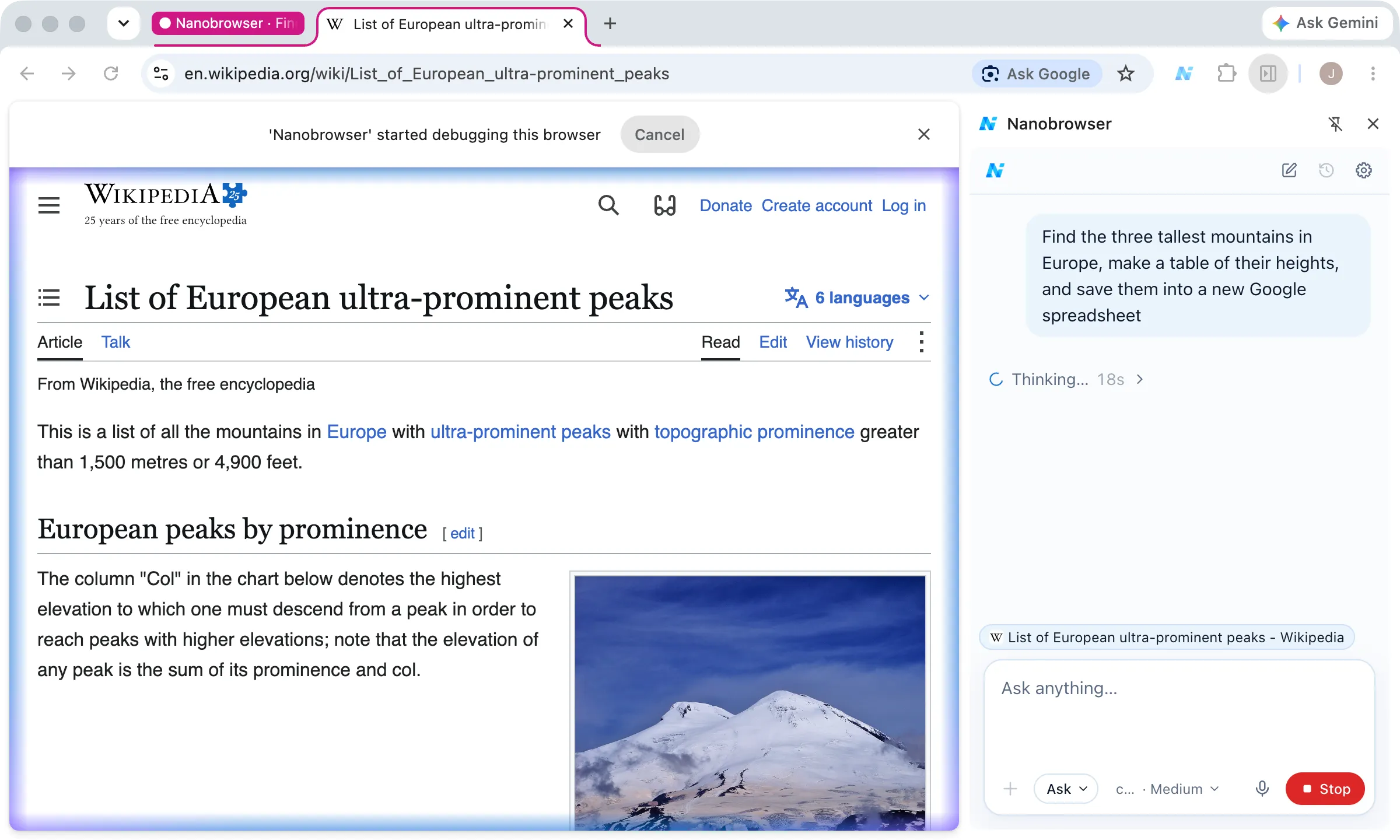
Each chat keeps its tabs in a tab group. The group holds the tab you started in, the tabs the agent opens and the tabs you share. The group is called “Nanobrowser”. Once the task starts, the name adds the first words of your task, such as “Nanobrowser · Find the three…”.
The start of the group’s name shows the state:
- ●: the agent is working.
- !: the agent needs you, for example to answer a card.
Naming and coloring the group needs the Tab groups permission. Allow it in Settings → Permissions → Additional browser permissions. Without it, the tabs are still grouped, but the group has no name and the default color.
The toolbar badge
The Nanobrowser icon in the toolbar shows a badge on the task’s tabs:
- •: the agent is working.
- !: the agent needs you, or the task was interrupted.
If you allowed Notifications, you also get a notification when a task is done or needs you, unless the panel for that chat is in view.
The page border
While the agent works, a glowing border shows around each page of the task. It’s hidden from the screenshots the model takes. To turn it off, go to Settings → General and turn off Show page border.
Move a tab to another chat
A tab belongs to one chat at a time. You can move it:
- With
@. In the other chat, type@and pick the tab. The panel asksAnother conversation is using this tab. Move it here?Click Move. If the agent is working in that tab, stop it first. - By dragging. Drag the tab into another chat’s tab group. It moves without asking. Drag a tab out of a group to take it out of the chat. The tab stays open.
- With New chat. Click New chat in the panel. The tab leaves its chat and starts a new one. If the agent is working there, the panel asks first.
Close the agent’s tabs when you delete a chat
When you delete a chat in Recent tasks, and the agent opened tabs for it, the panel asks whether to close them too. Click Close them or Keep them.
Tick Remember my answer to do the same every time without being asked. There is no setting to change this answer later.
Only the tabs the agent opened are closed. The tab you started in and the tabs you shared leave the tab group and stay open. If the agent is still working in the chat, it stops first.
Stop and continue the agent
Stop
Click Stop in the panel or press Esc. Clicking Cancel on Chrome’s debugging bar also stops the agent.
The page is then yours again. To carry on, send a new message that says what to do next.
Send a message while the agent works
Type a message and press Enter. It waits above the message box under Sent when the current action finishes. The agent reads it after its current step, so you can correct it without stopping it.
Until then, you can Edit or Delete a waiting message. If you click Stop, waiting messages go back into the message box. They aren’t sent.
Continue after the turn limit
When the agent reaches the turn limit, it stops and the panel says The agent stopped at its turn limit. Click Continue to let it go on.
Resume after a restart
If the browser or the extension restarts in the middle of a task, the panel says The run was interrupted. Click Resume to carry on.
Set the turn limit
A turn is one model call and the actions it asks for. Maximum turns is how many turns one task can take before it stops and asks whether to go on.
- It’s 100 by default. You can set it up to 500.
- Change it in Settings → General, under Agent.
Find and manage past chats
Click the History button (the clock icon) at the top of the panel to open Recent tasks. The newest chats come first.
- Search: type in Search conversations to find chats by title.
- Open: click a chat to read it in this panel. Send a message in it to continue it in this tab.
- Rename: click the pencil to change the title.
- Export as Markdown: download the chat as a Markdown file.
- Delete: remove the chat for good.
Chats that are still working, need you or failed show it next to the date, such as Working, Needs you or Failed.
You can’t open Recent tasks while the agent works in this tab’s chat. Stop it or wait until it finishes. Panels in other tabs aren’t affected.
Edit a message, or run it again
Point at one of your messages to see its buttons. They show only while the agent isn’t working.
- Edit: change the message and send it. The task runs again from there. Files attached to it are kept.
- Restart from here: run the same message again. What came after it is replaced.
When a task ends with an error, Retry shows next to the error. It runs your last message again.
Warning
Edit, Restart from here and Retry rewind the chat only. What the agent already did on sites stays done, and may happen again.
What happens in long tasks?
When a chat gets close to the model’s context window, Nanobrowser sums it up: older steps are replaced by a short list of what the agent did and a summary the model writes.
- Your own messages are always kept in full.
- The chat shows a note that starts with
Earlier steps were compacted. - The summary is written by the model, so it can miss details or be wrong.
To sum up a chat yourself, type /compact. If the agent is working, it happens before its next step. If the chat is still short, the panel says Nothing to compact yet: the conversation is still short.
For very long tasks, it can help to start a new chat with a clear summary of what is done and what is left.