

Use Nanobrowser
Ask and Auto mode
Couldn't copy. Open the Markdown.
Choose when the Nanobrowser agent asks before it acts. Approval cards, site rules and the steps that are always yours.
On this page
- What does the agent do in each mode?
- What is Ask mode?
- What is Auto mode?
- How do I switch the mode?
- Why does the agent ask before it sends?
- Keys for the approval card
- How do I set a rule for a site?
- What counts as the same site?
- Which steps are always yours?
- When the agent asks you a question
- Does uploading a file count as a change?
- Does saving a file ask?
- How do I see what the agent changed?
- What can the agent miss?
The agent reads pages, clicks and types on its own. Before it changes something on a site, your settings decide whether it asks you first. The AI model can’t change these settings.
What does the agent do in each mode?
| What the agent does | Ask mode (default) | Auto mode |
|---|---|---|
| Read pages, click links, scroll, move between tabs | Goes ahead | Goes ahead |
| Submit, send, delete or upload | Asks you first | Goes ahead |
| Pay, enter a password or code, grant access | Hands the step to you | Hands the step to you |
Filling in the fields of a form doesn’t ask. Only the step that sends the form does.
You can also set a rule for a site. A rule wins over the mode. See site rules.
What is Ask mode?
In Ask mode, the agent stops before it submits, sends, deletes or uploads anything. It shows you an approval card and waits. Every new chat starts in Ask mode unless you change the default.
What is Auto mode?
In Auto mode, the agent submits, sends, deletes and uploads without asking you first. It still hands you payments, passwords and codes, but it may not spot every one.
Use Auto mode for tasks you trust, on sites you trust. You can still set a site to Ask, so that it asks there even in Auto mode.
How do I switch the mode?
- In the side panel, click Ask (or Auto) next to the model name and pick Ask (Ask before changes) or Auto (Make changes on its own).
- Or press
Ctrl+Shift+P(Cmd+Shift+Pon a Mac).
Each chat keeps its own mode. When you switch, new chats start in that mode too, and your other chats keep theirs. You can also set the default in Settings → General → Default mode.
Why does the agent ask before it sends?
When the agent wants to submit, send, delete or upload, and your settings say to ask, it shows an approval card in the side panel. The card says what the agent wants to do, on which site, and why it asked. If the step would take the page to another site, the card also says Sends the page to …: check that site before you allow it. Click Show tab to see the page.
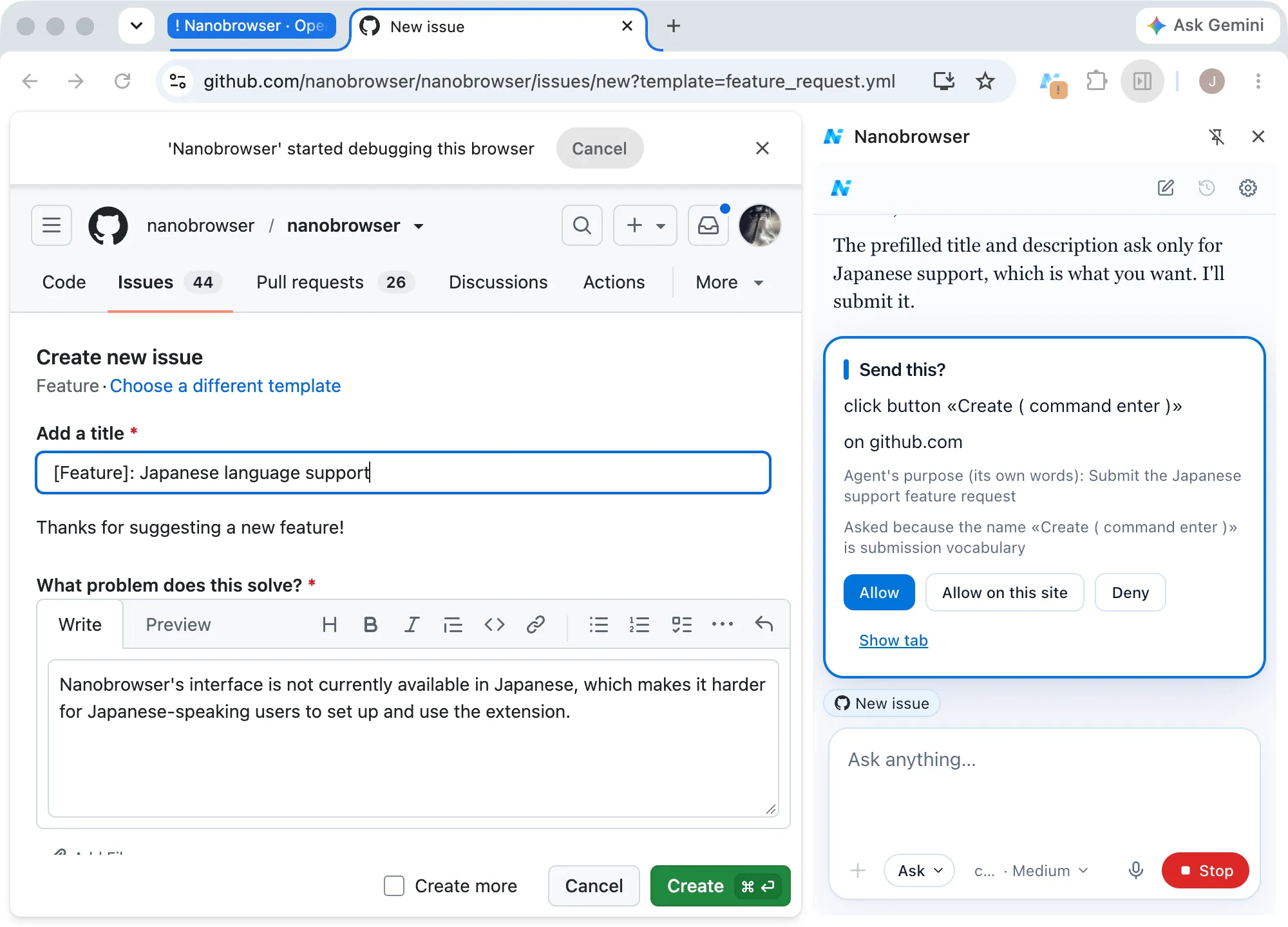
You have three answers:
- Allow: do this one action.
- Allow on this site: do it, and allow every later change on this site without asking, including deletes. This adds an Allow rule for the site.
- Deny: don’t do it. The agent skips this step.
A card waits until you answer it or stop the task. There is no time limit.
Keys for the approval card
The keys work only while the card has focus. Click the card or move to it with Tab first. A new card never takes focus by itself, so a key you meant for the message box can’t answer it.
| Key | Answer |
|---|---|
Enter |
Allow |
Ctrl+Enter (Cmd+Enter on a Mac) |
Allow on this site |
Esc |
Deny |
On a site set to Ask, or a page with no web address, the card has no Allow on this site, and Ctrl+Enter acts as plain Allow.
How do I set a rule for a site?
Open Settings → Permissions → Sites. Each site can have one rule:
| Rule | What it does |
|---|---|
| Allow | Changes run without asking, in both modes. |
| Ask | Changes always ask first, even in Auto mode. |
| Block | The agent never opens or acts on the site. |
To add a site, type its name (example.com) or paste an address in the box, pick a rule and click Add. To change a rule, pick a new one in the list. To remove a rule, click the trash icon. A site with no rule follows the mode.
Allow on this site on an approval card adds an Allow rule. Ask and Block can only be set here.
Tip
Set your bank, your email and your work tools to Ask or Block. Then a task in Auto mode can’t change anything there without you.
What counts as the same site?
A site is the host name in the address bar, such as example.com. Case, http or https, and a leading www. don’t matter. Subdomains and ports are separate sites: a rule for example.com doesn’t cover mail.example.com or example.com:8080.
A rule covers every page and account on its site, and lasts until you remove it.
Which steps are always yours?
Some steps the agent never does, in any mode, whatever your site rules say:
- Paying, placing an order, subscribing, donating or booking.
- Granting access, such as an “Authorize” button on a “Sign in with…” page.
- Typing a password, a card number or a one-time code.
- Answering a page’s pop-up that asks you to type something.
When the agent reaches one of these, it stops and shows a card whose title starts with Nanobrowser detected a step that is yours, followed by the kind of step, such as payment or password. Do the step yourself in the tab, then click Done, and the agent carries on. Click Cancel if you don’t want to do it. Check the address in the tab before you type anything.
The agent may also hand you a step it can’t do, such as a “verify you are human” check. That card is titled Please do this step yourself.
When the agent asks you a question
Sometimes the agent needs something from you, such as a choice or a detail it doesn’t have. It shows a card titled The agent asks: with a box for Your answer. Click Skip if you don’t want to answer.
Warning
Don’t type passwords, card numbers or codes in Your answer. What you type there is sent to the model.
Does uploading a file count as a change?
Yes. An upload is always treated like sending, so it asks in Ask mode. The agent can only upload files you attached in the chat. It can’t pick a file from your computer.
Does saving a file ask?
In Ask mode, yes: a Save this file? card asks first. In Auto mode, the file is saved without asking. See Save results to a file.
How do I see what the agent changed?
Every step is listed in the chat. A change also shows how it was allowed: allowed by you, allowed by the site’s rule or allowed by Auto mode.
What can the agent miss?
The agent spots changes and your steps by reading button names and how a page is built. It can miss some, such as icon-only buttons, switches that save as soon as they’re flipped, and drag and drop. A missed change runs without asking, even in Ask mode. It can also ask when it doesn’t need to.
Some steps never ask, in any mode:
- Opening pages. A page could trick the agent into opening an address that carries your data elsewhere. Block is the only rule that stops the agent from opening a site.
- Typing. A page can see what the agent types before anything is sent.
So watch what the agent does, and click Stop at any time to take over. See prompt injection.