

Get started
Quickstart
Couldn't copy. Open the Markdown.
Install Nanobrowser in Chrome or Edge, connect a model and run your first task.
Install the extension, connect a model, then give the agent a task. It takes a few minutes.
Install Nanobrowser
- Chrome: open Nanobrowser in the Chrome Web Store, click Add to Chrome and confirm.
- Edge: open Nanobrowser in Edge Add-ons, click Get and confirm.
You need Chrome or Edge 125 or later. Firefox and Safari aren’t supported. Other Chromium browsers, such as Opera, Arc and Brave, may work, but we don’t test them.
To pin it, click the puzzle piece in the toolbar, then the pin next to Nanobrowser.
Set it up on the welcome page
The welcome page opens after you install.
-
Welcome. A short note on what Nanobrowser does. Click Next.
-
Choose a model. Pick Local or Cloud.
- Local uses Ollama or LM Studio on your computer. Choose the Server, check the Server address and click Connect. See Run a local model.
- Cloud uses OpenAI, Anthropic, Google Gemini or OpenRouter. Choose the Provider, paste your API key and click Connect. Your key stays in your browser and goes only to that provider.
Then pick a Model and click Test and use this model. If the test passes, it becomes your default model. If the test says the model can’t use tools, pick another one. The agent needs tool calling (why).
Not ready? Click Set it later. You can add a model at any time in Settings → Providers, which also has xAI Grok, DeepSeek, Mistral and any OpenAI-compatible service.
-
Tips. Three tips for safe use. You can also:
- Click Allow next to Additional browser permissions. This lets the agent name its tab groups, send you notifications and save files to your Downloads folder. You can skip it and allow it later in Settings → Permissions.
- Turn Help improve Nanobrowser on or off. It’s on by default, and sends anonymous usage counts, never your chats. Settings → Data has it too, next to a second switch, Anonymous daily count. See What Nanobrowser sends to us.
Click Open the panel.
Open the side panel
There are three ways:
- Click the Nanobrowser icon in the toolbar.
- Press
Alt+Shift+N(Option+Shift+Non a Mac). To change the keys, go to Settings → General → Keyboard shortcut and click Configure. - Select some text on a page, right-click it and choose Ask Nanobrowser about this. The panel opens with the text quoted above the message box.
The panel opens on the current tab. Each tab has its own panel.
Run your first task
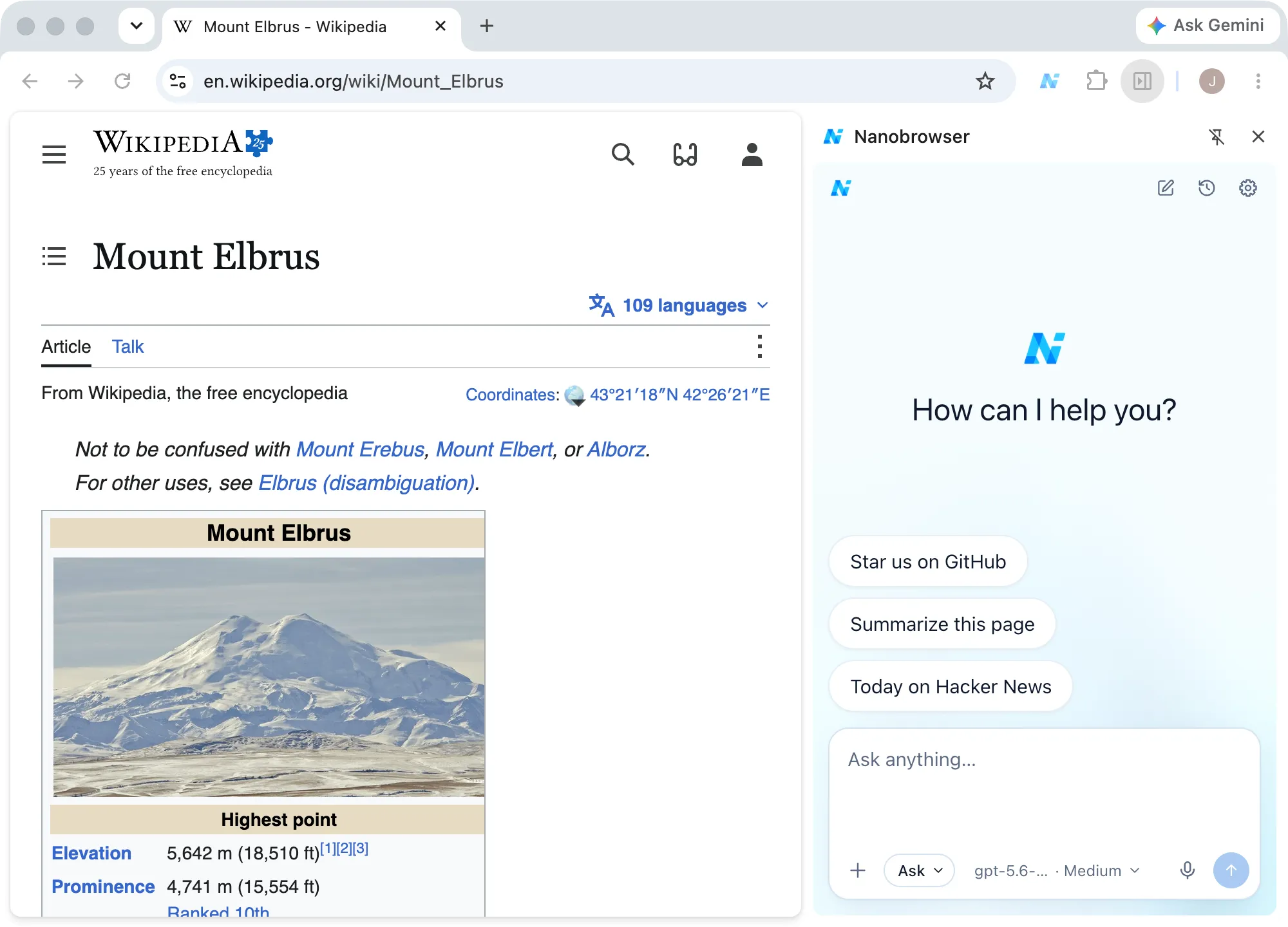
- Open a page you want help with, then open the side panel.
- Type what you want in the box that says Ask anything… and press
Enter. PressShift+Enterfor a new line. - Watch the agent work. It reads the page, clicks and types in your tab.
- Click Stop at any time to take over.
While the agent works, Chrome shows a bar at the top of the page: 'Nanobrowser' started debugging this browser. That’s how Nanobrowser clicks and types in the page, and it’s normal. Clicking Cancel on that bar stops the agent.
An empty chat also shows a few ideas, such as Summarize this page. Click one to send it.
The agent starts in Ask mode. It goes ahead with reading and clicking links, but asks you before it submits, sends, deletes or uploads anything. Click Allow to let it go on. See Ask and Auto mode.
Some tasks to try:
- “Summarize this page in a few bullet points.”
- “Compare the three laptops I have open and put the prices and specs in a table.”
- “Find a portable Bluetooth speaker on Amazon that is water-resistant, under $50, with at least 10 hours of battery.”
- “Extract the top 10 headlines from TechCrunch in the last 24 hours and save them as a CSV file.”
How do I write a good task?
- Say what you want at the end. “A table with the name, price and rating” works better than “look at these products”.
- Give the details. Dates, names, prices, limits: “under $50”, “a table for two on Friday at 7 pm”.
- Name the site if it matters: “on Amazon”, “in my Gmail”.
- Say where the result goes. Ask for an answer in the chat, or “save it as a CSV file”.
- Start small. Try short tasks on sites you know, and watch what the agent does.
- Keep it simple for local models. They do best with short, clear tasks.
The agent can make mistakes, so check its work. Avoid payments, private data and sites you don’t trust. When the agent reaches a payment, a password or a code, it hands that step to you, but it may not spot every one.